Thank you kindly @Lost_N_BIOS !
Using MCExtractor I was able to verify the BIOS using my unorthodox methods 
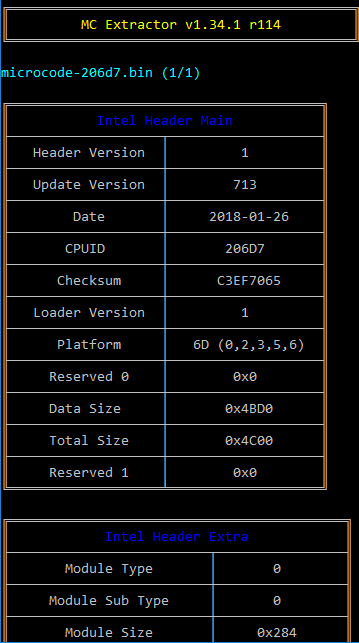
microcode from BIOS:
[[File:Screenshot (22)-bios.png|none|auto]]
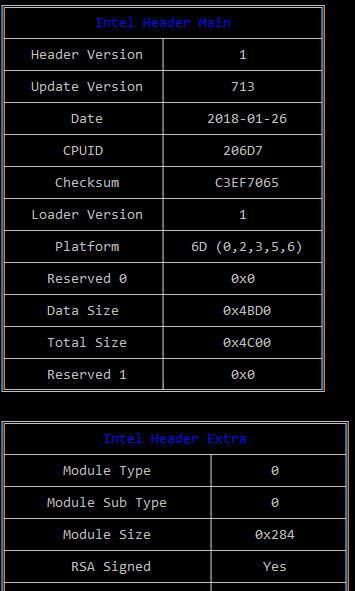
microcode from dd:
[[File:Screenshot (24)-dd-206d7-2018.png|none|auto]]
The microcode in the BIOS and dd extracted microcode match
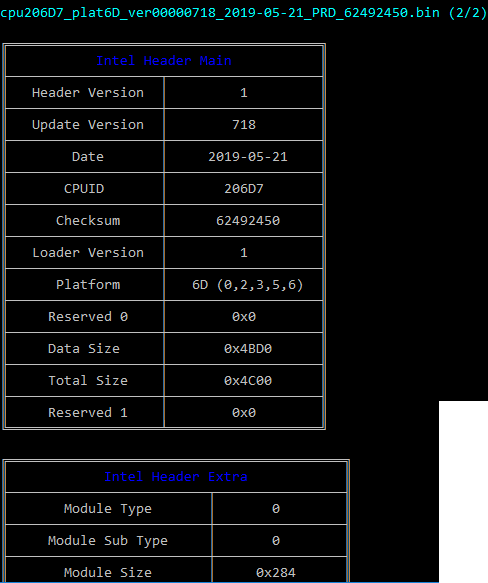
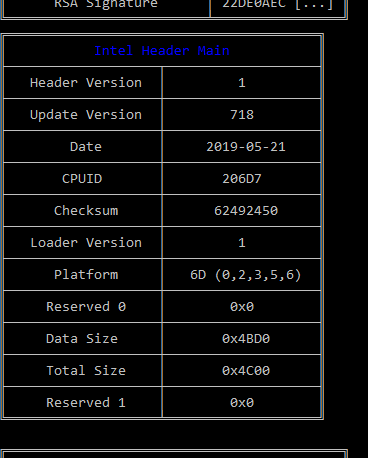
The new microcode:
[[File:Screenshot (21)-cpu206d7.png|none|auto]]
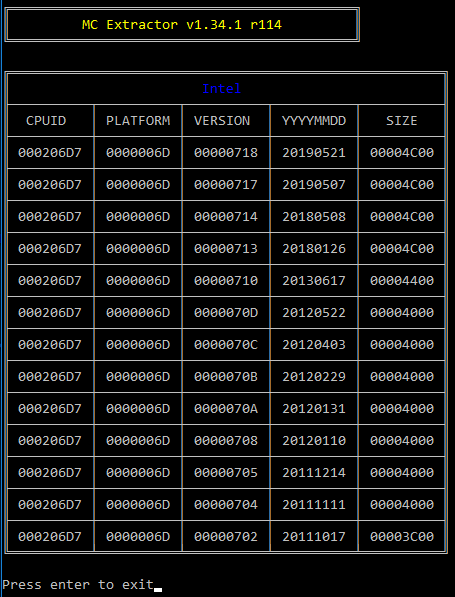
206D7 microcode table for reference:
[[File:Screenshot (23)-206d7-table.png|none|auto]]If its not too much trouble, I’d appreciate it if you can update the microcode and share the BIOS and also post instructions. Then I can learn how by trying to replicate it and verify I did it correctly.
NVMe:
For the NVMe update, I took the original BIOS and added in the NVMe driver - no errors.
Microcodes update
Since the microcodes are the exact same size, I tried to update them by overwriting them in the original BIOS. It looks good in MC Extractor:
[[File:Screenshot (25)-BIOS-updated-mc.png|none|auto]]
But UEFITool 0.26.0 shows:
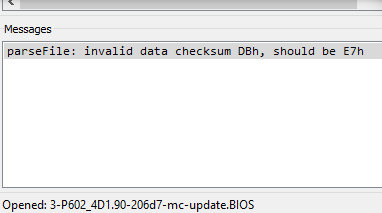
parseFile: invalid data checksum DBh, should be E7h
[[File:Screenshot (25)-checksum-error.png|none|auto]]
I'm not sure how to correct the checksum error.
Combined
To make the combined BIOS image, I used the updated microcode BIOS and then added in the updated NVMe driver.
If its not too much trouble, please share the proper way to do this. This method does not work, especially when the microcodes are not the same size. Thanks again!
Link to original BIOS: http://asrock.pc.cdn.bitgravity.com/BIOS...16(1.90)ROM.zip
Site link in case its broken: https://www.asrockrack.com/general/produ...4L/D16#Download
1 - 1.90 Original BIOS
2 - Original BIOS => added NVMe [OK]
3 - Original BIOS => updated microcode [checksum error]
4 - Original BIOS => updated microcode [checksum error] => added NVMe [saved successfully, ??]
deleted because it doesnt work, check the last post for a working BIOS!
Had some time to take a another crack at it by trying to follow the guide on the first page but changed the process a little.
Opened the original BIOS with UEFITool_NE_A40, located the microcode and found the containing ROM module GUID.
Then I opened the BIOS with UEFITool_v0.26.0. Found the ROM module GUID.
Extracted the body: File_Raw_17088572_377F_44EF_8F4E_B09FFF46A070_body.raw => body.raw
new cpu microcode: cpu206D7_plat6D_ver00000718_2019-05-21_PRD_62492450.bin => microcode.bin
Find the header of the new microcode (similar to the old microcode)
2
3
4
5
6
7
#  xxd microcode.bin | head
00000000: 0100 0000 1807 0000 1920 2105 d706 0200  ......... !.....
00000010: 5024 4962 0100 0000 6d00 0000 d04b 0000  P$Ib....m....K..
00000020: 004c 0000 0000 0000 0000 0000 0000 0000  .L..............
00000030: 0000 0000 a100 0000 0100 0200 1807 0000  ................
00000040: 0000 0000 0000 0000 1705 1920 1112 0000  ........... ....
...
search for the header by CPUID in the extracted RAW body
2
3
# xxd body.raw | grep -H "d706 0200"
(standard input):0000c400: 0100 0000 1307 0000 1820 2601 d706 0200  ......... &.....
(standard input):0000c450: 0100 0000 d706 0200 0000 0000 0000 0000  ................
Replace the old microcode with the new microcode. Only works if its the same size!
# dd conv=notrunc if=microcode.bin of=body.raw bs=1 seek=50176
Aside: I think if its smaller, the same process will work if you fill in the extra space with FF, dont think FIT table update is required. If its larger, you have to split the file, insert, recombine, and then update the FIT table. This maybe easier with the Hxd tool if you are not comfortable with command line.
In UEFITool_v0.26.0, replace the same GUID body with the modified body.raw. Save it and re-open => no errors. Check with MC Extractor, looks good.
Then add NVMe as usual.