[Problem] Crazy Secure-boot on Gigabyte Z390 Master

Not sure why you changed the DB table mine had the newer stuff, with the 2023 keys. The DBX can be enpty. Also why downgrade the ME.

I thought you wanted a copy to rip the PK, KEK, DB keys?

I can pass on to Gigabyte that the vscc table are incorrect, yet should have a new bios off them in a week, waiting on the reply for the above device guard issue.

Also in f13f when saving it reports changes with a ! Not =, I can get random reports that my cpu is at 8ghz in bios, yet voltage is normal. Among 1-2 other bios issues

I can try what you have done, buy I already have a modified bios from @Koekieezz yet dont use, as I can’t report finding to Gigabyte if on a modified.

It seems to me that either you didn’t understand what I wrote at all, or there is some other issue regarding trust.

While I was making an effort to find a solution to your problem in response to your request for help,
I find questions like “Not sure why you changed the DB table mine had the newer stuff, with the 2023 keys. The DBX can be empty. Also why downgrade the ME” to be pointless, and I feel I shouldn’t have to explain myself further.
In my initial post above, I had stated that the root cause of the problem might lie in the ME region and that there could be an incompatibility between the ME and the Secure Boot keys.
The fact that my explanation contained too many technical details and that you were unwilling to try the file I prepared for you suggests a trust issue, rather than a situation where I can actually help you find a solution.

“I can try what you have done, but I already have a modified BIOS from @Koekieezz yet don’t use it, as I can’t report findings to Gigabyte if on a modified one.”

Here is what I gather from this:
Why didn’t you mention from the very beginning that you didn’t need the files we prepare, while I was busy preparing BIOS files for you?

After all, you wrote that you are capable of doing this yourself.
Besides, what harm could there possibly be in testing a file prepared by me or someone else?
Is it really that difficult to revert to the previous state by restoring the original setup after testing for the issues you intend to report to Gigabyte?
You could test my file (or someone else’s); if the problem persists, it is very easy to restore your own BIOS and go back to how things were.

None of this makes sense to me, and I do not believe this discussion is substantive or focused on finding a solution. In my view, this platform is a unique space where everyone offers solutions to one another—fostering mutual aid and problem-solving—and where professionals come together with the ultimate goal of achieving success.
That is, after all, its very purpose.

If Gigabyte failed to provide you with a solution—which appears to be the case—
then it is only natural for you to be here.
However, you should also help those who assist you, so that we can reach a solution together.

Please forgive me if I have said anything amiss.
I am sorry.

@Zaver, thank you for sharing the file.
I tried the official BIOS file on my own motherboard—a “Gigabyte H310M S2H (Rev. 1.x)”—using cross-flashing, and I even tested various other ME versions.


However, the motherboard won’t even boot up—let alone display an image.
The board receives power, and the USB ports are active.
Yet, if I use its original BIOS, it boots and works fine.

I’ve concluded that the motherboard verifies the ME checksum found in the BIOS against the ME firmware embedded in the chipset to initiate the boot process.
In short, the chipset on my board is different, and the ME 12 version is directly linked to the startup process; if I use ME 11, the board fails to boot entirely.

I also cross-flashed the custom BIOS I prepared for the “trebleta” motherboard; my board boots up, and interestingly, all components—including Ethernet—work perfectly. I can reach the desktop without any issues.


1 Like

@ismailTPC_Hastanesi Sorry, my original issue worked out to be the windows media creation tool, when using to make a USB or a ISO, it was still using the 2011 keys, fixing the boot to 2023 boot keys, fixed that issue.

The other issue with Secure boot, is the device guard ready in the bios, when you remove the UEFI CA From DB, it is a linx thing, the problem was on my board and @Zaver, the reason I said it prob not the ME as I am using 12.1 were @Zaver is using 11.x. yet the issue is on both.

If you mean my old topics they was resolved, as gigabyte did a free RMA.

I am more than happy to test, if you think it will sort the device guard issue. but I was waiting on gigabyte. they have been helping me with this bios since they launched the f13a.

But I have miss understood, as I thought you wanted a copy for the updated key so, But do appreciate what you have done, this topic was about crazy secure boot, trying to find a reason to then cry to gigabyte.

I have tried to modify the bios myself very basic, I started with changed the CPU Microcode’s, but well I did not see a point was no CPU gain that was noticeable, then @MeatWar had said in another topic to me that there is no real point in updating the GOP, as its only used on booting, so I stopped there, and used the other bios that was made, until I noticed the issue so I then swapped back to the official f13f bios.

Trust wise its were I don’t know what could happen, I am very new to this side of stuff and tiring to take a lot in, my pc is my pride and job, if I blows I am fucked, that’s what I’m am scared off, also its time too, I am only at the pc 2-3 hours if am lucky a day, work an my other half keeps me busy. Like at the moment I am on a mobile and not back at the pc till monday, but what could happen if a bios is bad worse case?

I do have a reprogrammer now too, i thinking more could I blow the RGB OR other chips if a bios is bad, I have no idea?

P.S what you have done though, like fixing the vscc or adding my bios to a different board I would never of been able to do, dam impressive :slight_smile:

I’m vikorist Z270 chipak with BIOS Z370

I’m not a used secure boot.
I have secure boot disabled.

1 Like

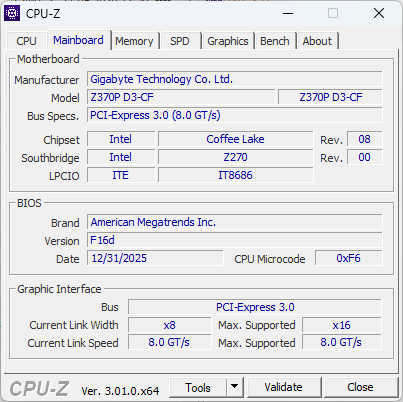
@Zaver, your motherboard is the Z370P D3 (Rev. 1.0)
“Z370 Express Chipset”
My motherboard is the H310M S2H (Rev. 1.x)
“H370 Express Chipset”
@trebleta’s motherboard is the Z390 AORUS MASTER (Rev. 1.0)
“Z390 Express Chipset”

Looking at these three distinct chipsets, there appear to be name similarities, but there is a major difference regarding the silicon itself.

@Zaver, your motherboard uses ME 11.
My motherboard and @trebleta’s motherboard use ME 12.

In this scenario, downgrading ME 12 to ME 11 in the BIOS prevents the motherboard from booting up entirely; not even the fan spins.

Your BIOS file will never boot—and the fan won’t even spin—if cross-flashed onto my motherboard or other motherboards equipped with the 370 and 390 chipsets.

By the way, for those who don’t know—and let no one say “that’s impossible,” or I’ll give them a piece of my mind—
I’ve already demonstrated above that it is possible.
I flashed the Z390 AORUS MASTER BIOS onto an H310M S2H motherboard and it worked; this isn’t the first time I’ve done something like this.

The key issue here is that a higher-tier chipset silicon is used, which necessitates the use of ME 12.
If someone with one of these higher-tier chipset motherboards attempts to cross-flash to downgrade from ME 12 to ME 11, the motherboard will fail to start up completely, and the fan won’t even spin.

That is exactly what I meant. Yes, your motherboard is a Z370 model, but since the chipset hardware belongs to an older generation, attempting to add ME 12 to the BIOS means the motherboard simply won’t work.

If we try ME 12 on your motherboard, the firmware fails to generate the required checksum when communicating with the chipset’s embedded software; consequently, the system won’t operate—the fans won’t even spin.

To prove this, if you have the means to do so, try upgrading the BIOS ME version to 12 and see what happens.

That is, of course, provided you have the tools or methods available to re-flash the BIOS afterward.

1 Like

I’m aware of that.
I flashed a Z390-series BIOS onto my Z370 board, keeping the ME region at version 11.
The board booted up, and I even got a BIOS display!!!

But not for long—it would reboot, and the cycle would just repeat.

1 Like

Could you provide a link to the Z390 motherboard you mentioned?
If the BIOS of that Z390 motherboard is based on ME 12, downgrading to ME 11 might not cause issues, and the motherboard could still boot up.
This is because your motherboard actually uses a previous-generation chipset, even though the naming suggests it is a newer model.
In reality, your motherboard is compatible with ME 11. However, if you try to use a Z390 BIOS (which is based on ME 12) on your motherboard, it won’t boot at all.
That is my opinion.

By “this,” do you mean it runs for 30 minutes and then shuts down?

1 Like

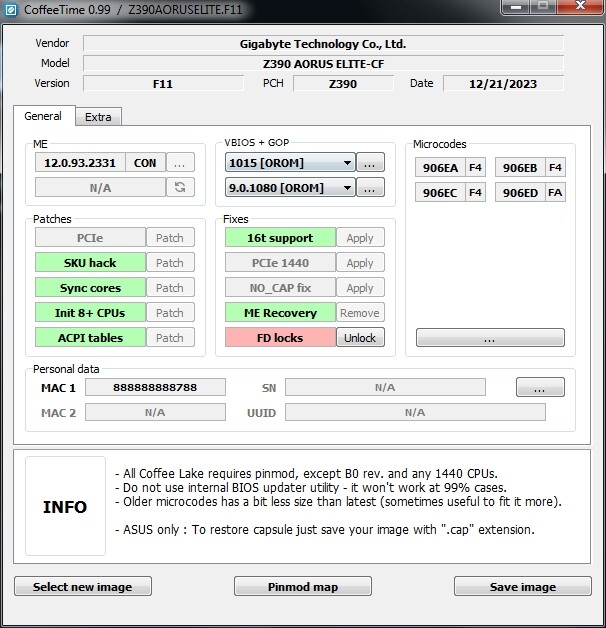
Of course, I flashed the BIOS for my Z370PD3 using the one from this model:

Z390AORUSELITE.zip (6.8 MB)

But I changed ME to 11.

Not 30 minutes, but 3 seconds and a reboot.

1 Like

I’m going to try this file on my own motherboard.
Let’s see what the result will be.

2 Likes

Not the file you provided—could you give me the other ME 11 file along with the one you modded?

Because ME 11 still didn’t work at all for me with this file.

Hello.
Yes, this is the original from the Gigabyte website.
I will give you the modified file when I am near my PC.

1 Like

What I am about to write concerns Gigabyte, first and foremost, as well as the motherboards they released that support LGA 1151 sockets and 8th/9th generation processors.
The part that truly matters to us, however, concerns the people who actually use these motherboards.
If you own one of these motherboards and wish to run modern games or certain applications on Windows 11, you will find yourself lacking the Microsoft CA 2023 certificates required for BIOS Secure Boot; consequently, you will be unable to play games at all or will be kicked out of them.
This is because your motherboards contain the outdated Microsoft CA 2011 certificates.
In this situation, owners of Gigabyte motherboards supporting LGA 1151 and 8th/9th generation processors have two choices: either contact Gigabyte to request an updated BIOS file, or simply sit there and cry.
:sob:

This is exactly the situation faced by @trebleta, who sought help regarding this issue.

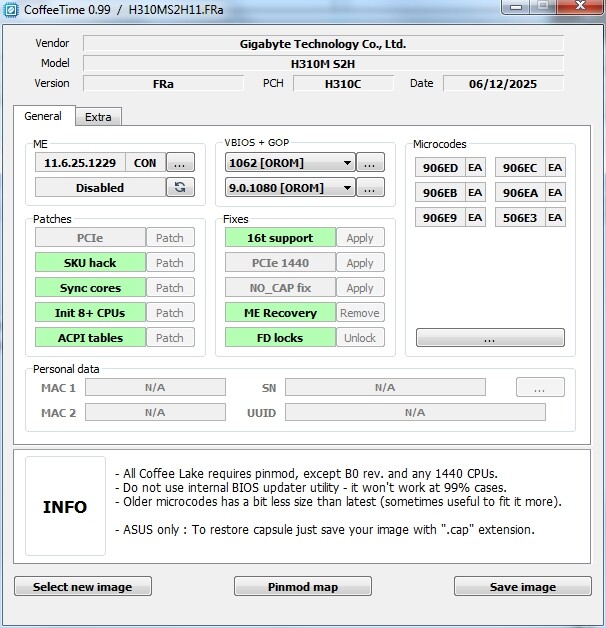
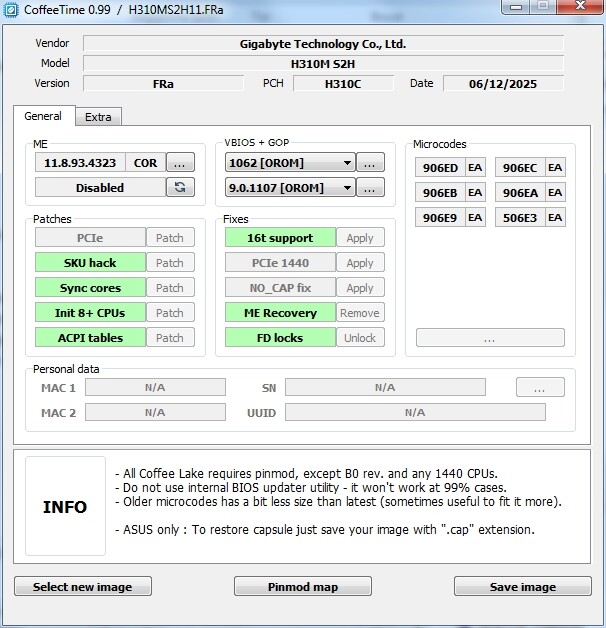
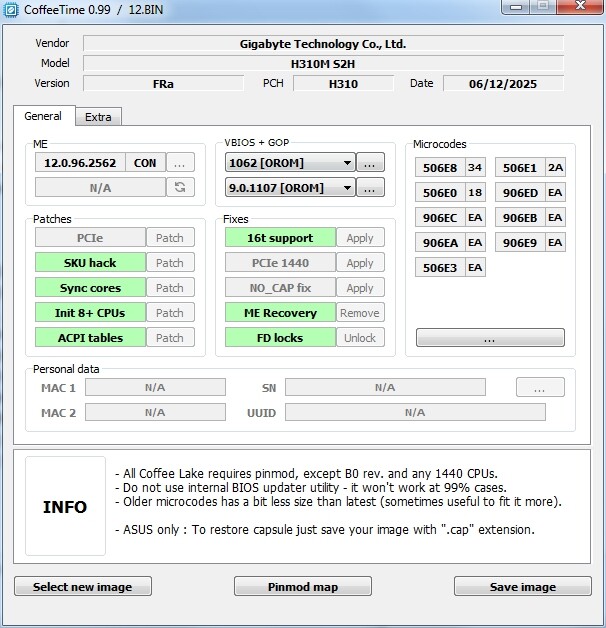
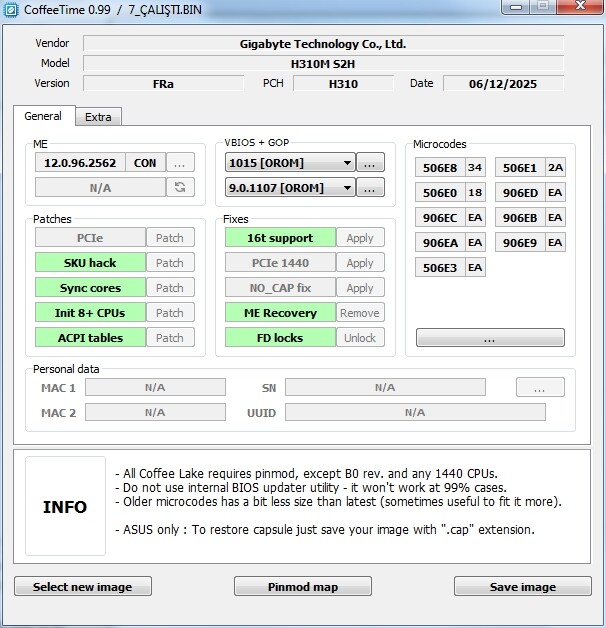
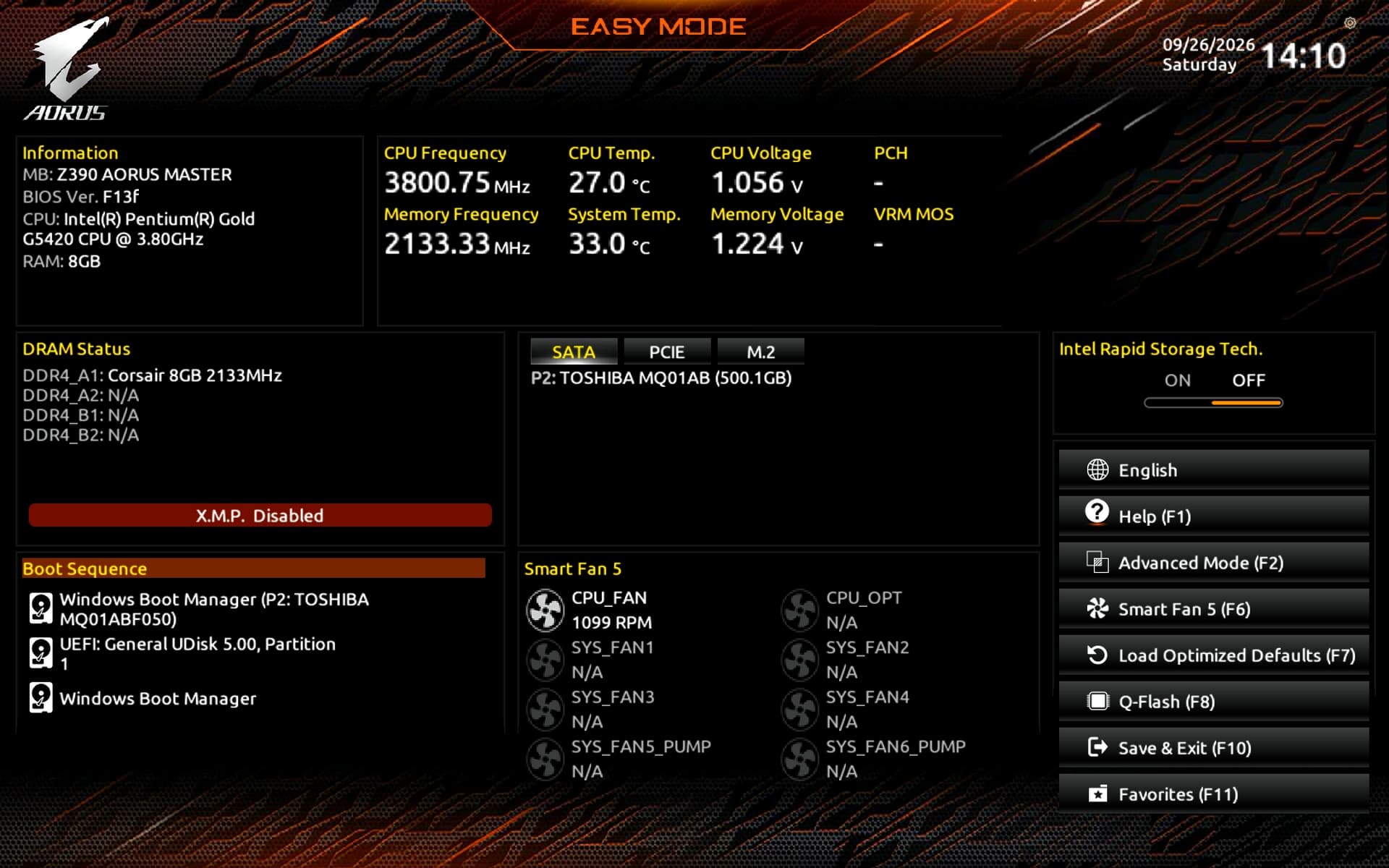
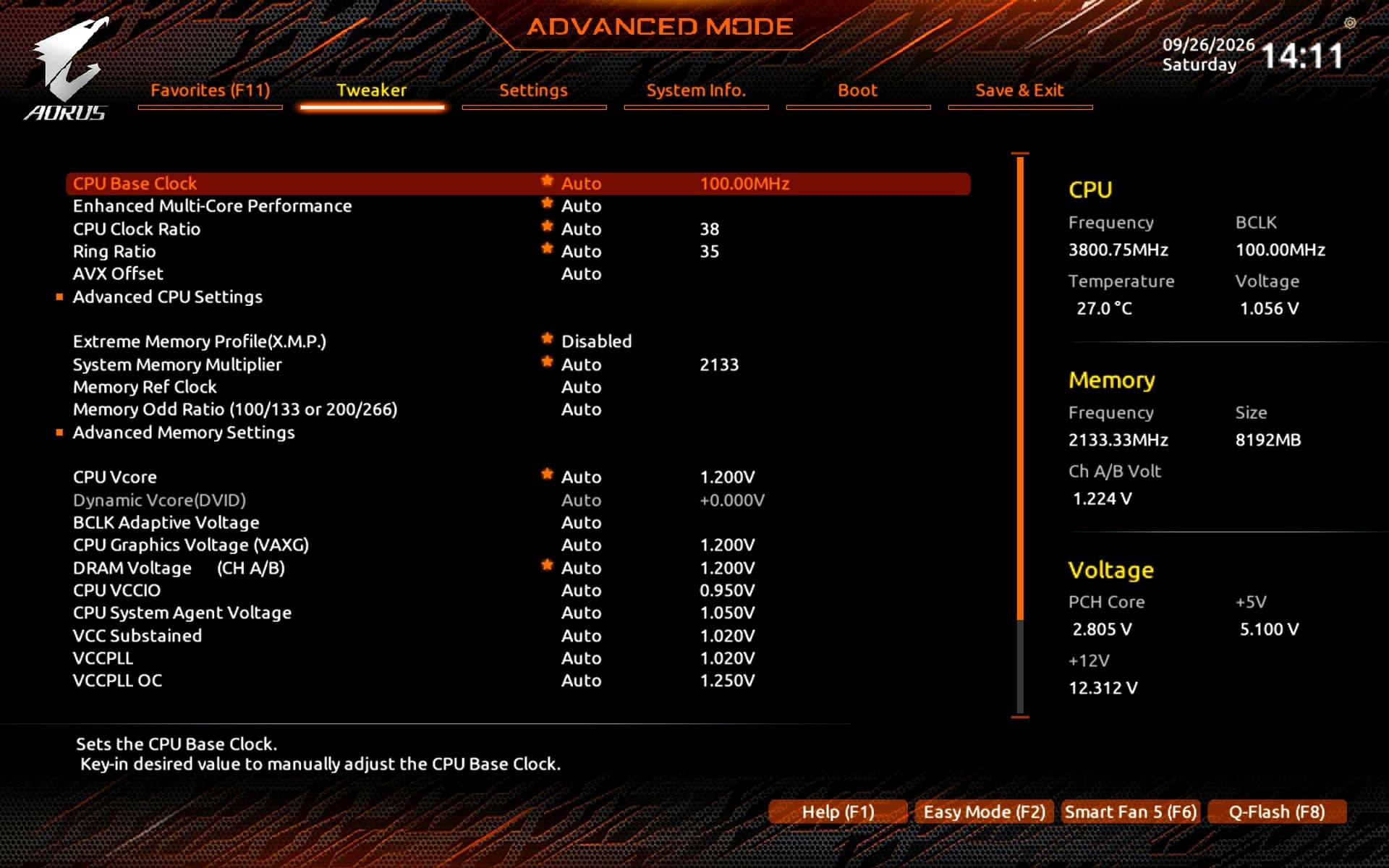
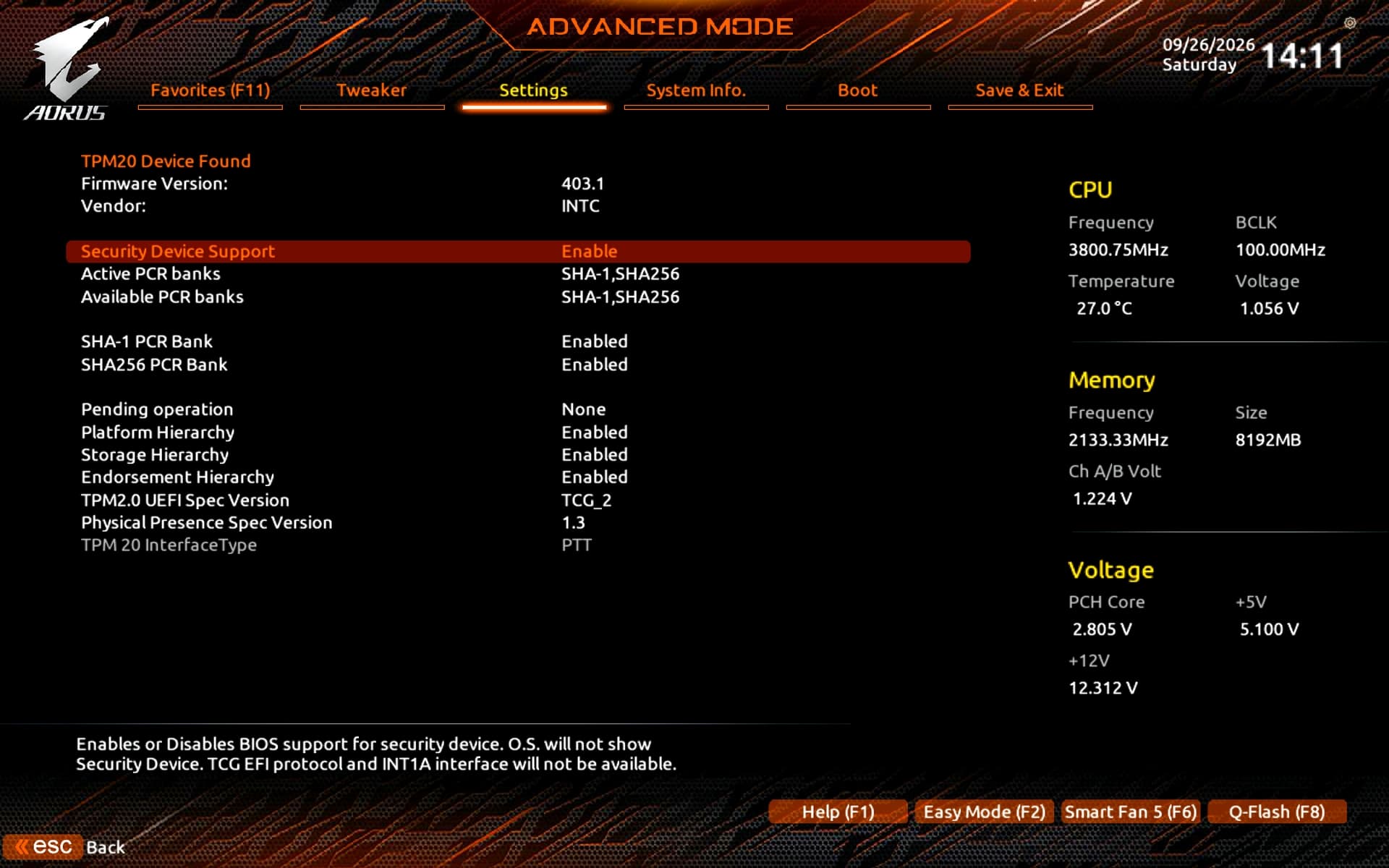
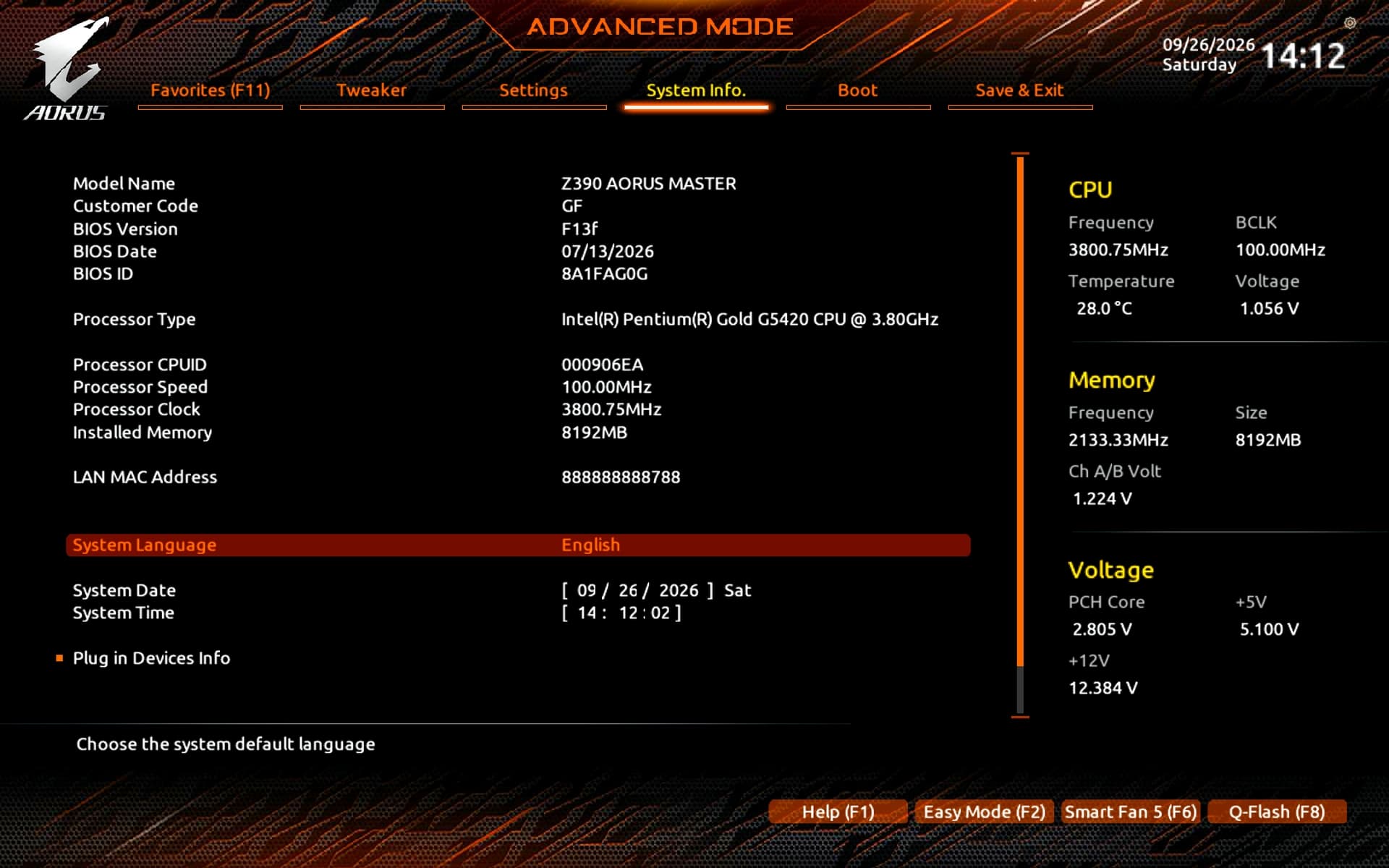
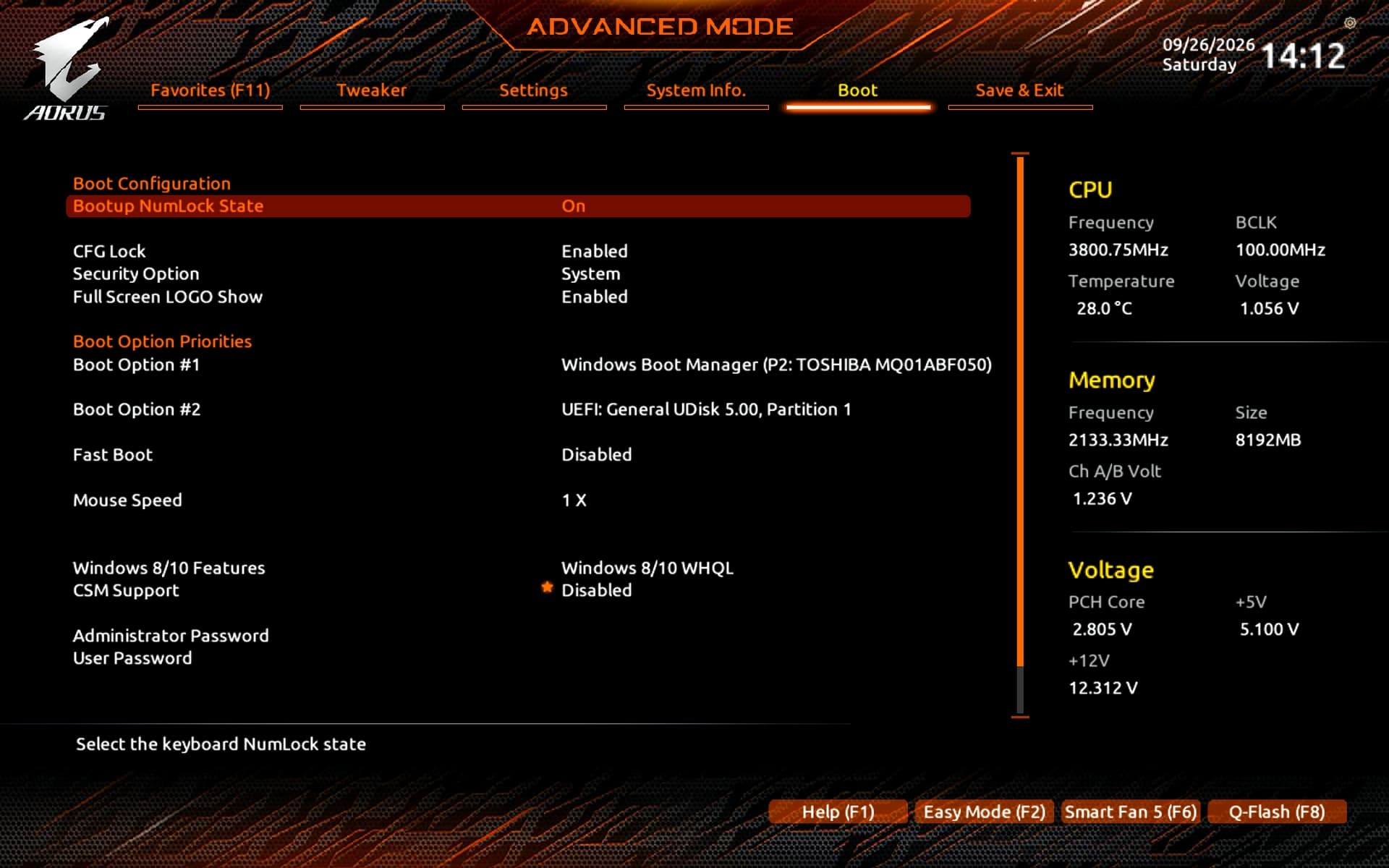
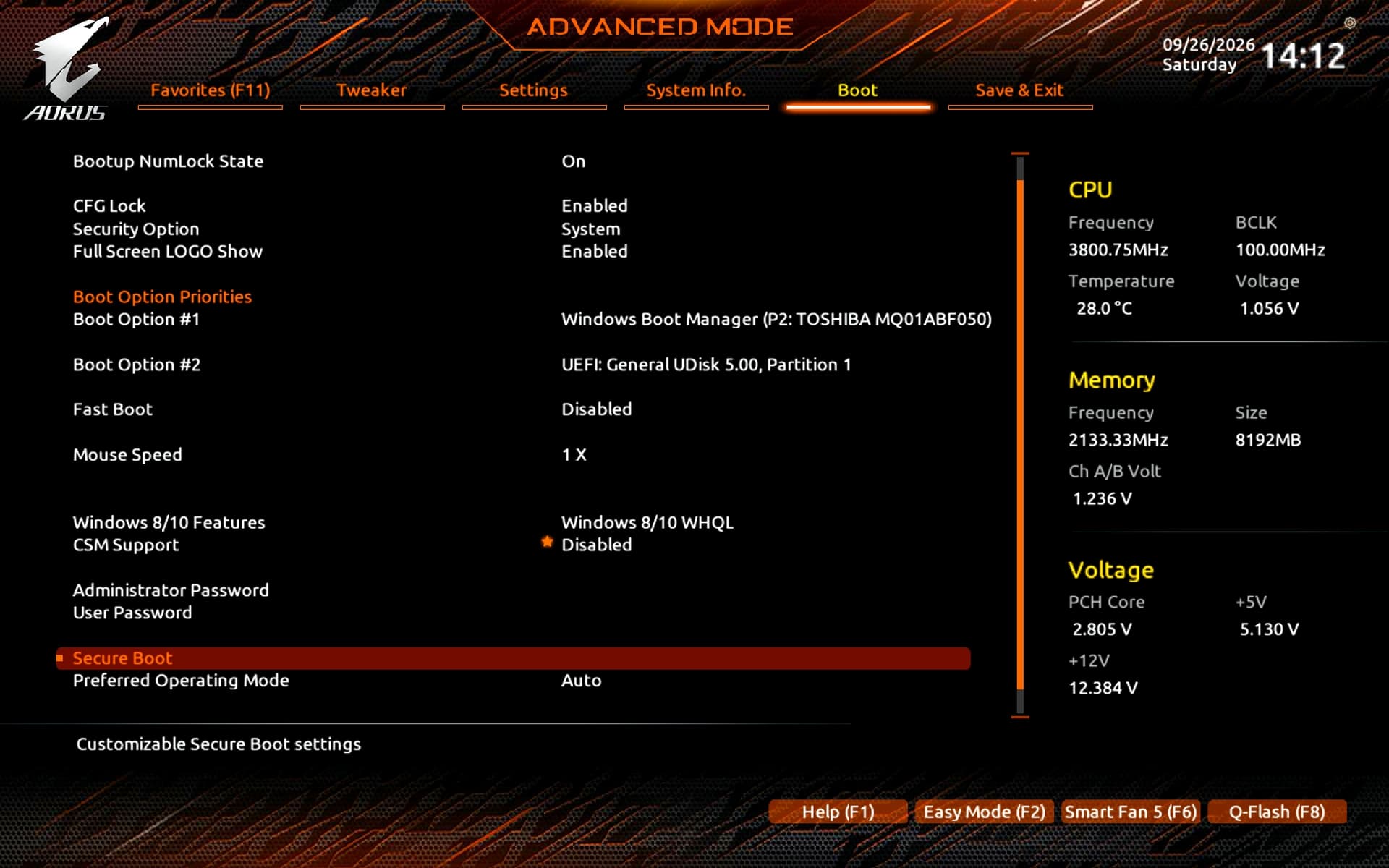
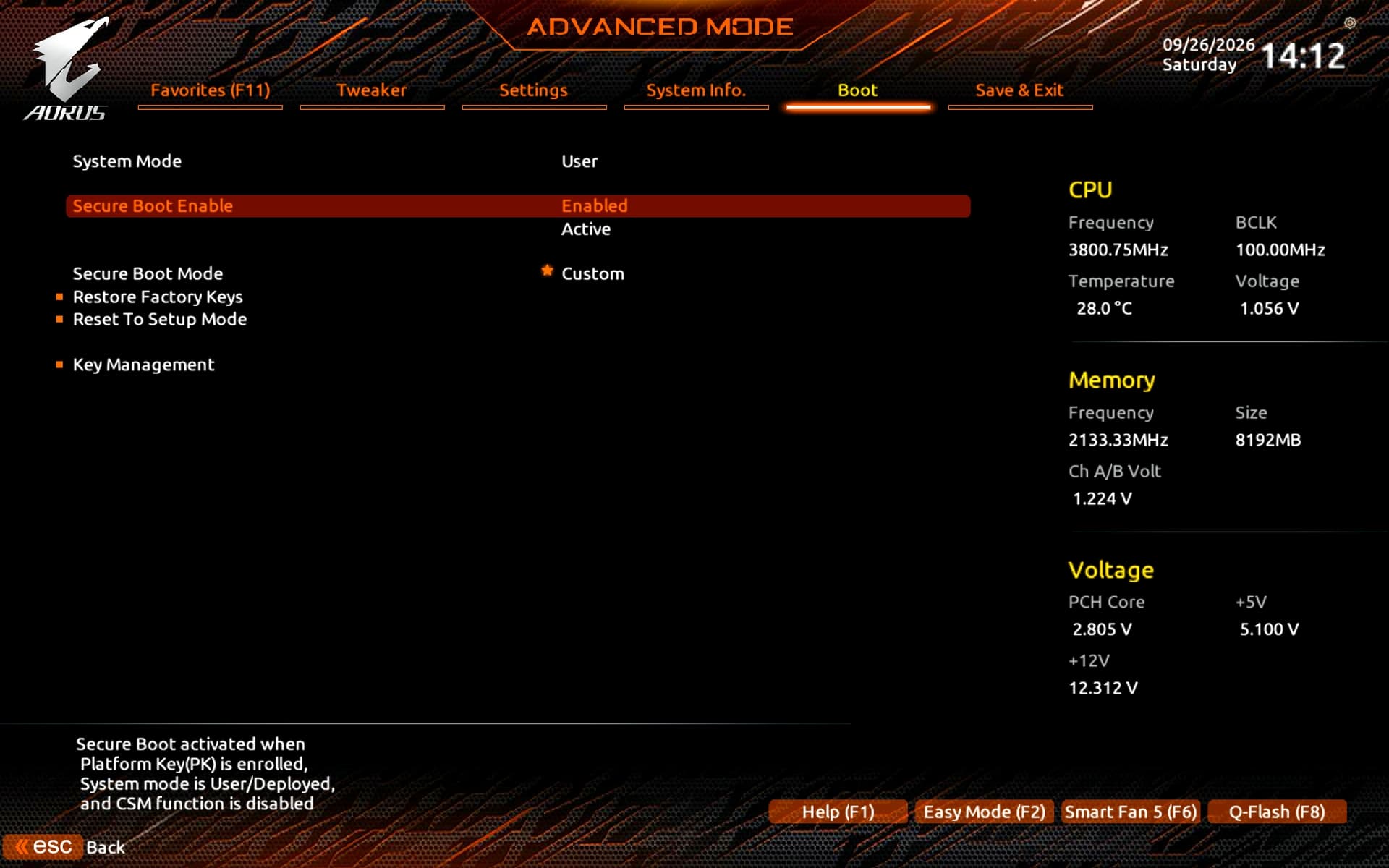
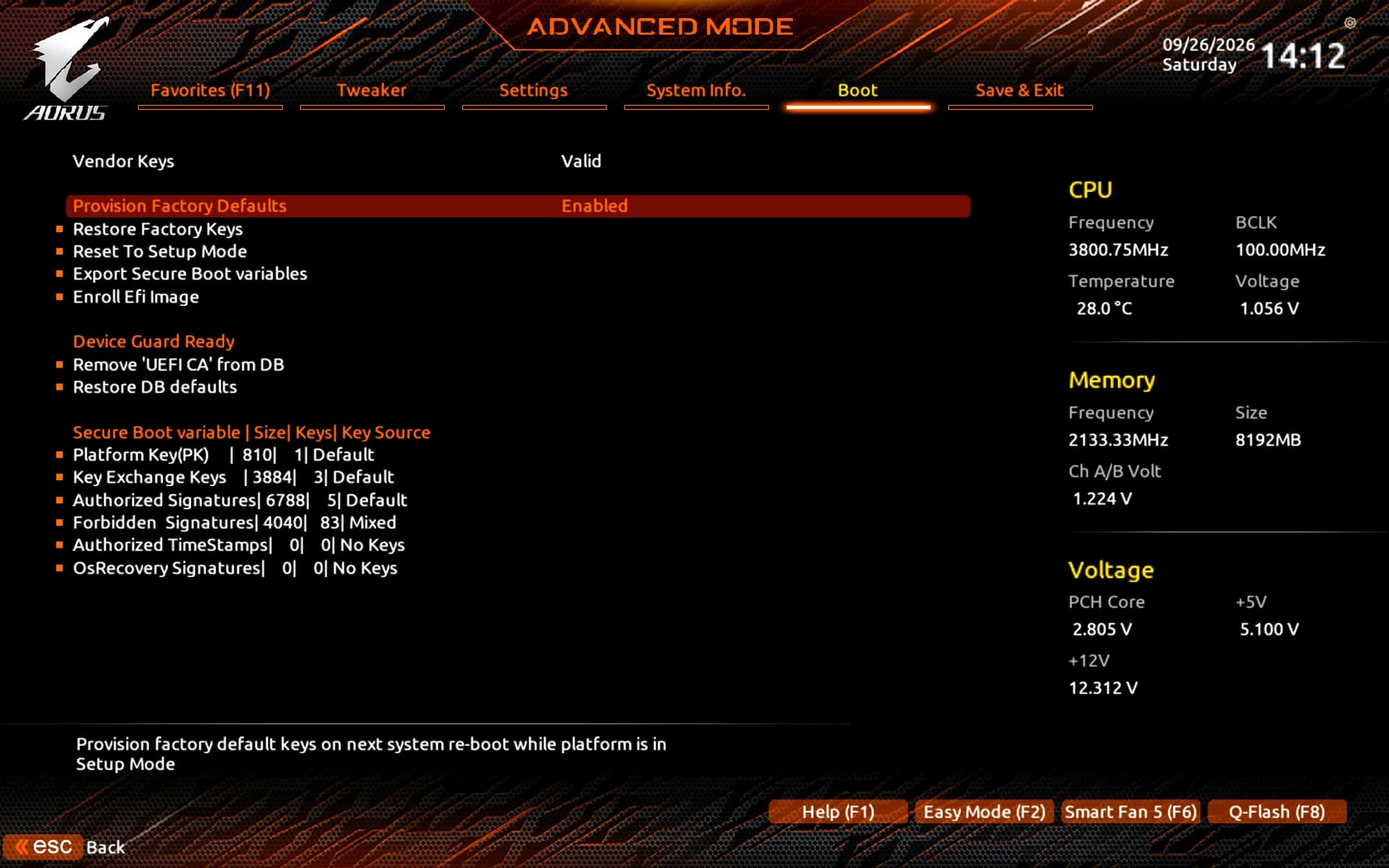
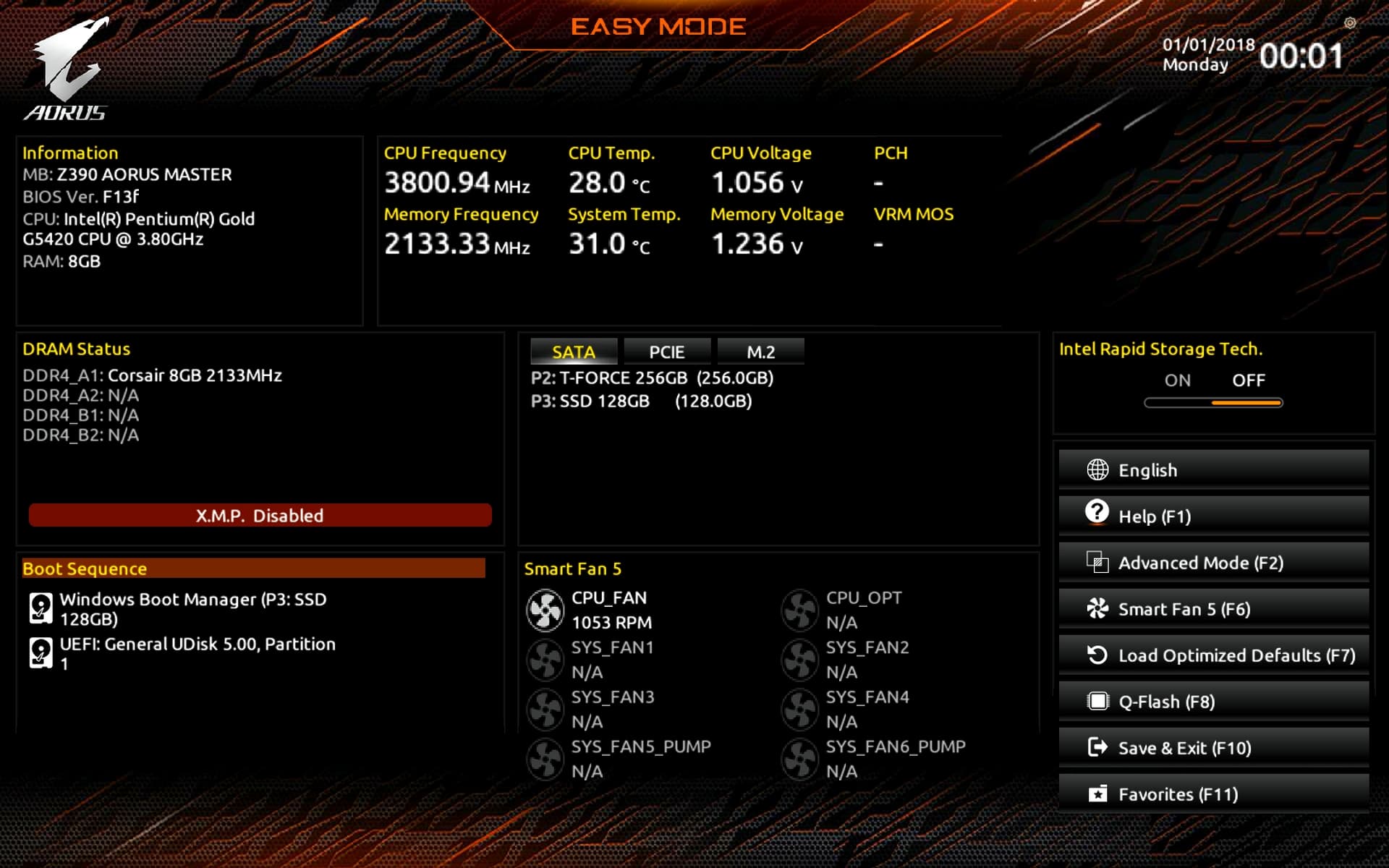
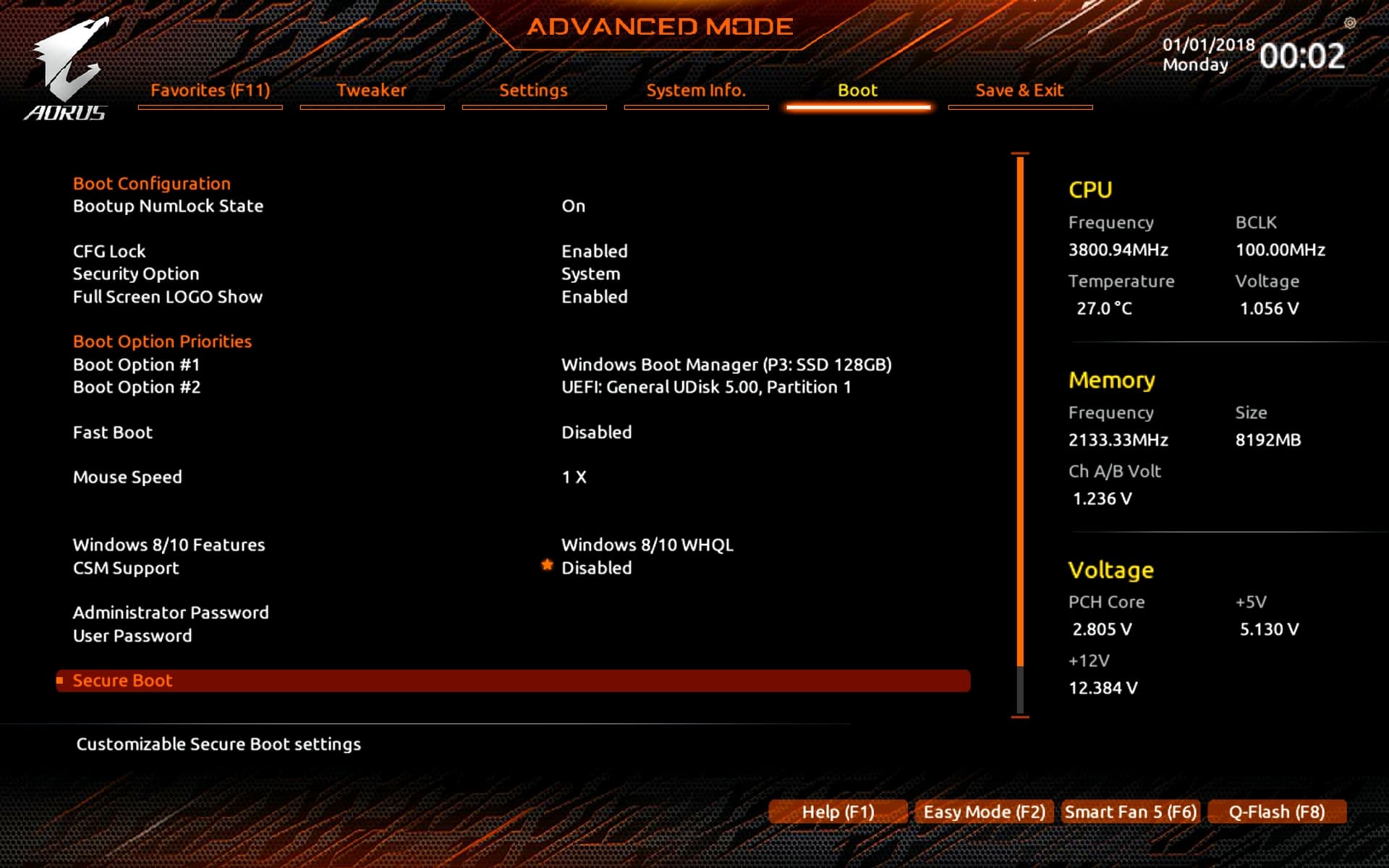
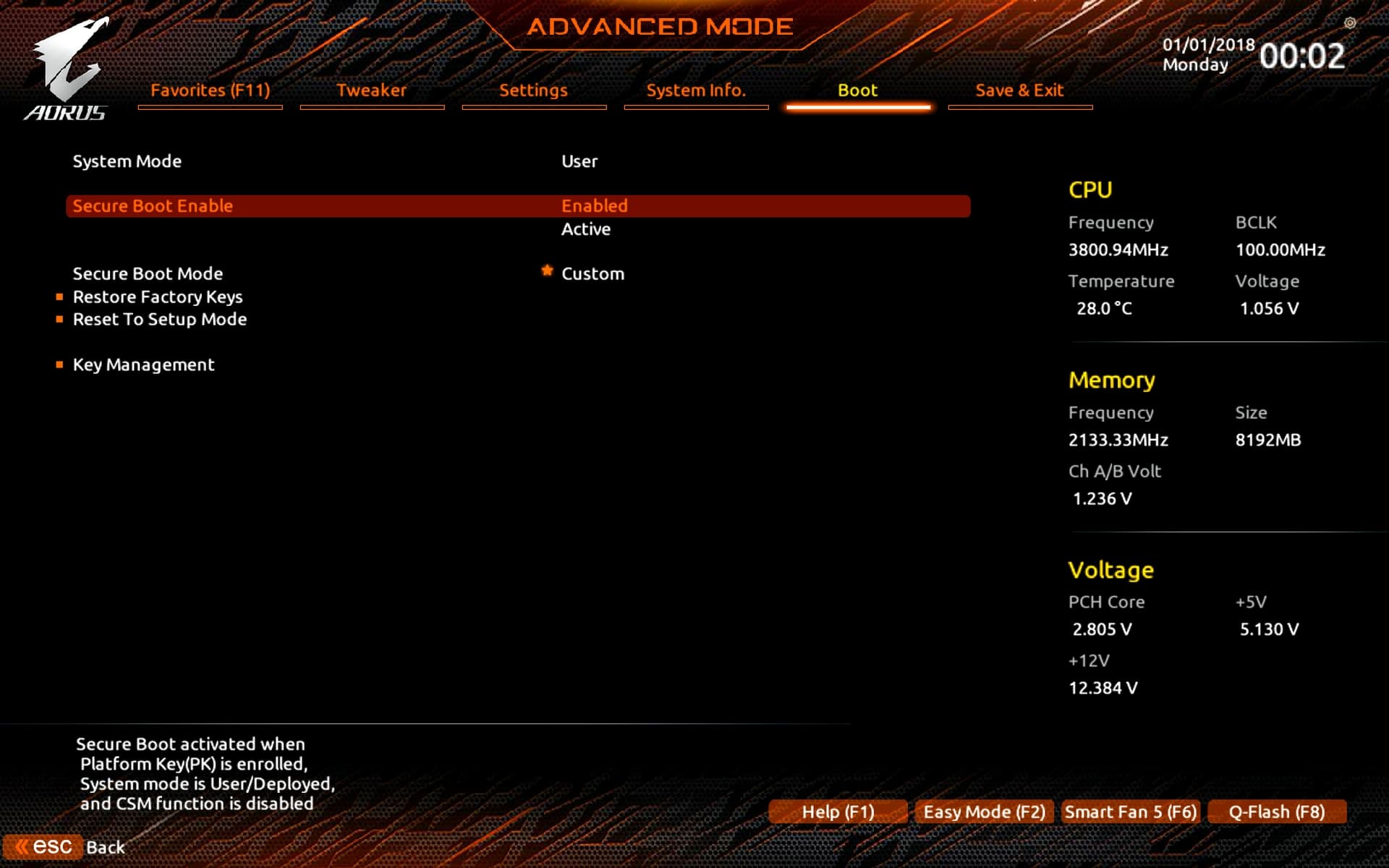
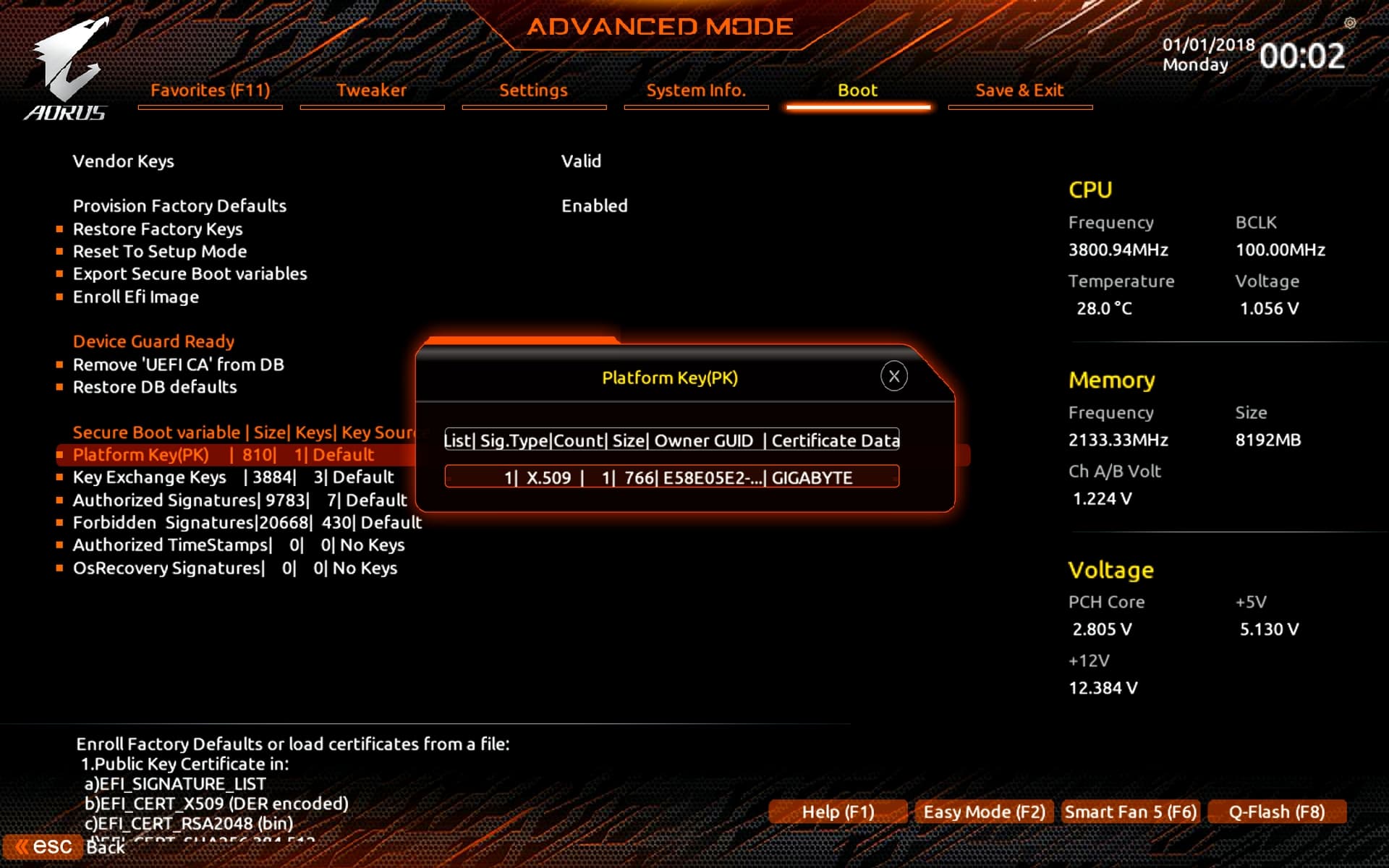
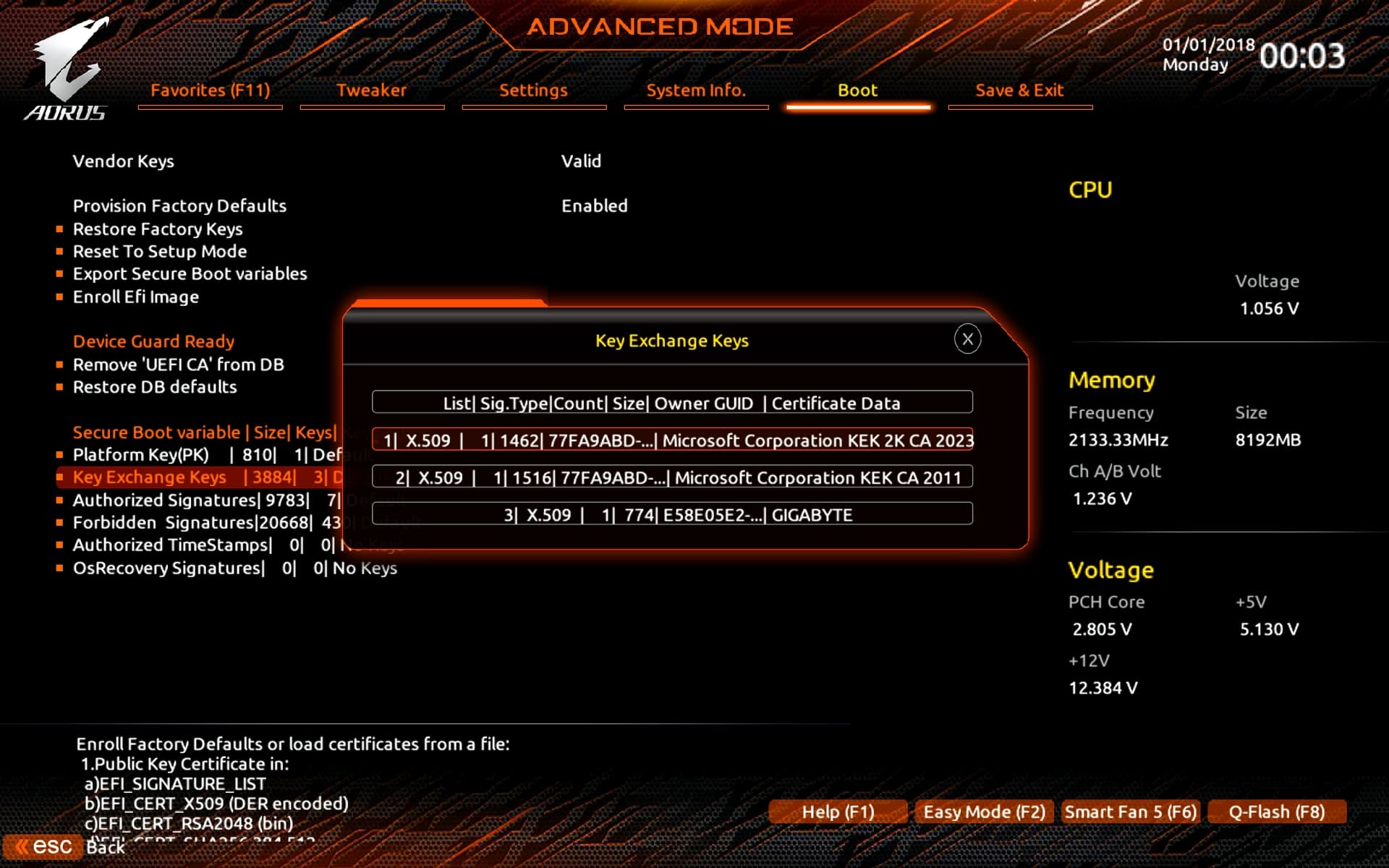
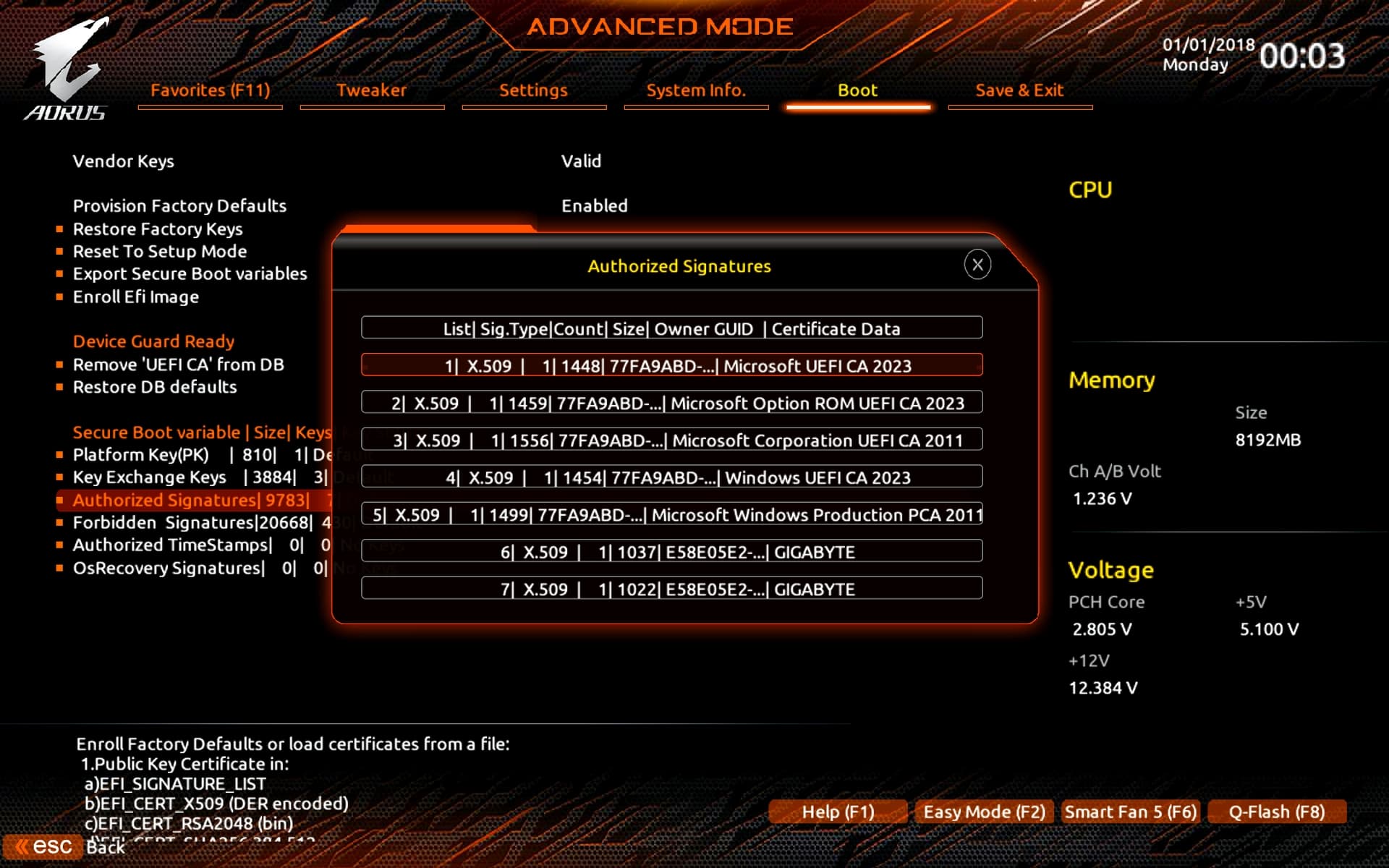
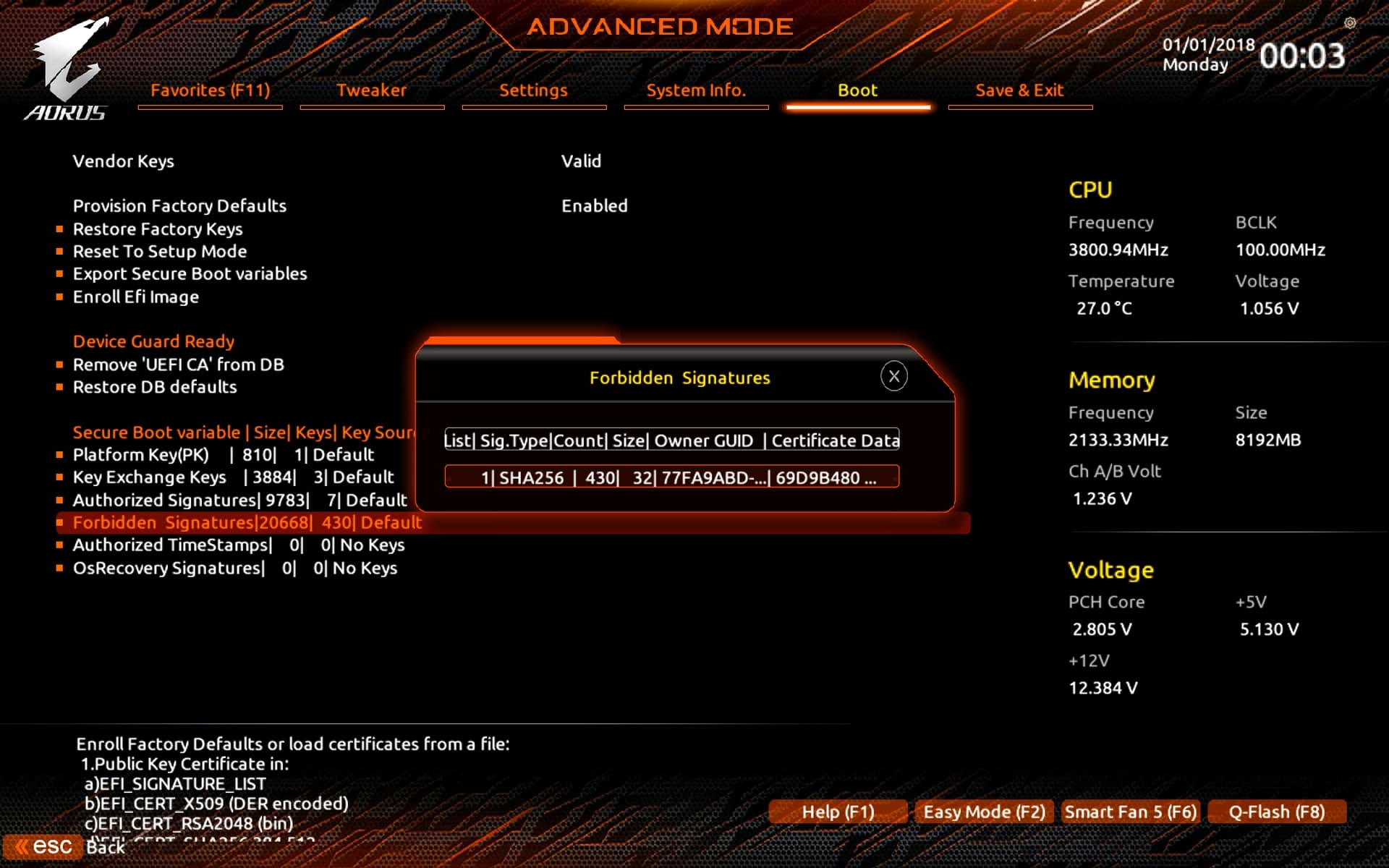
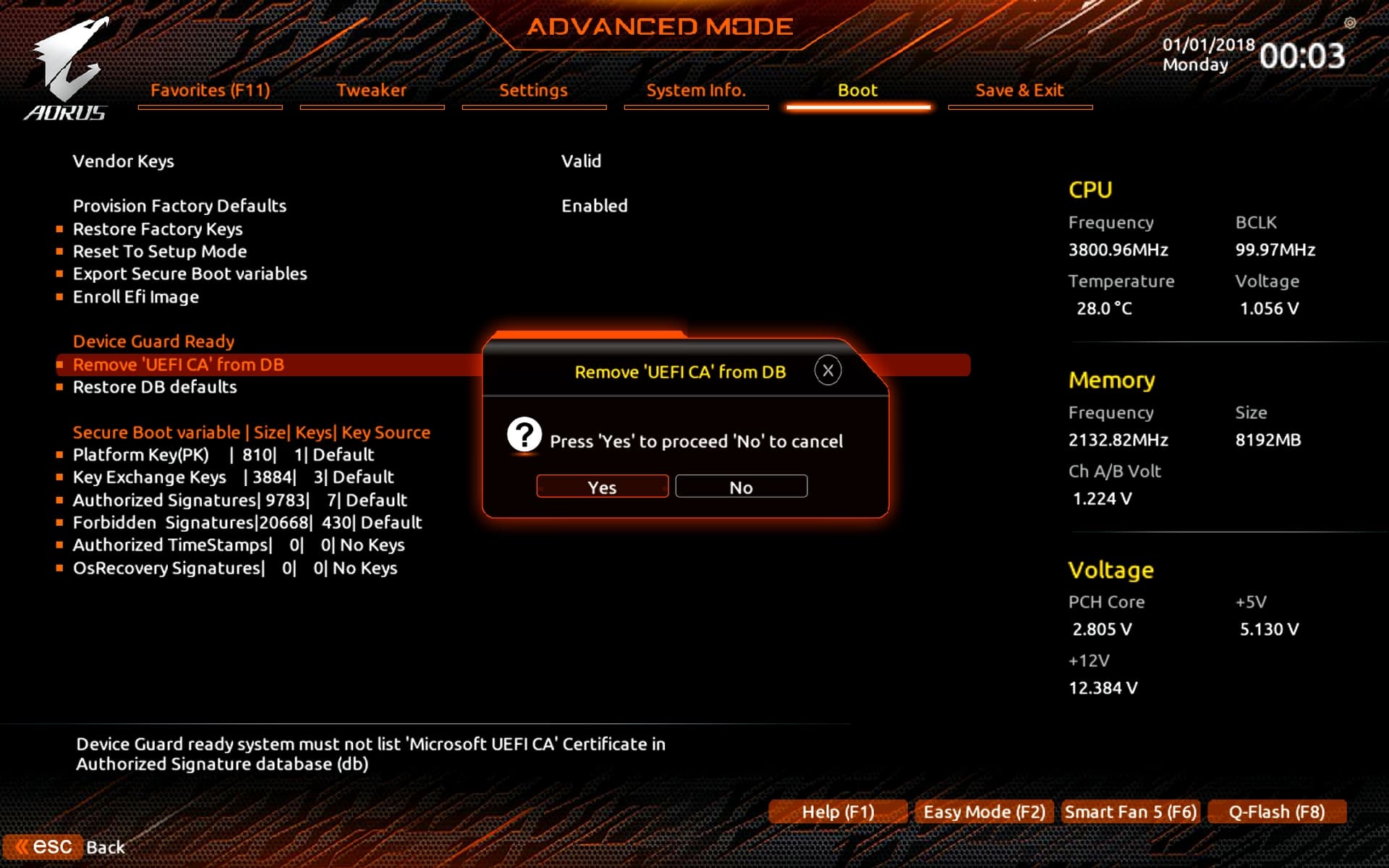
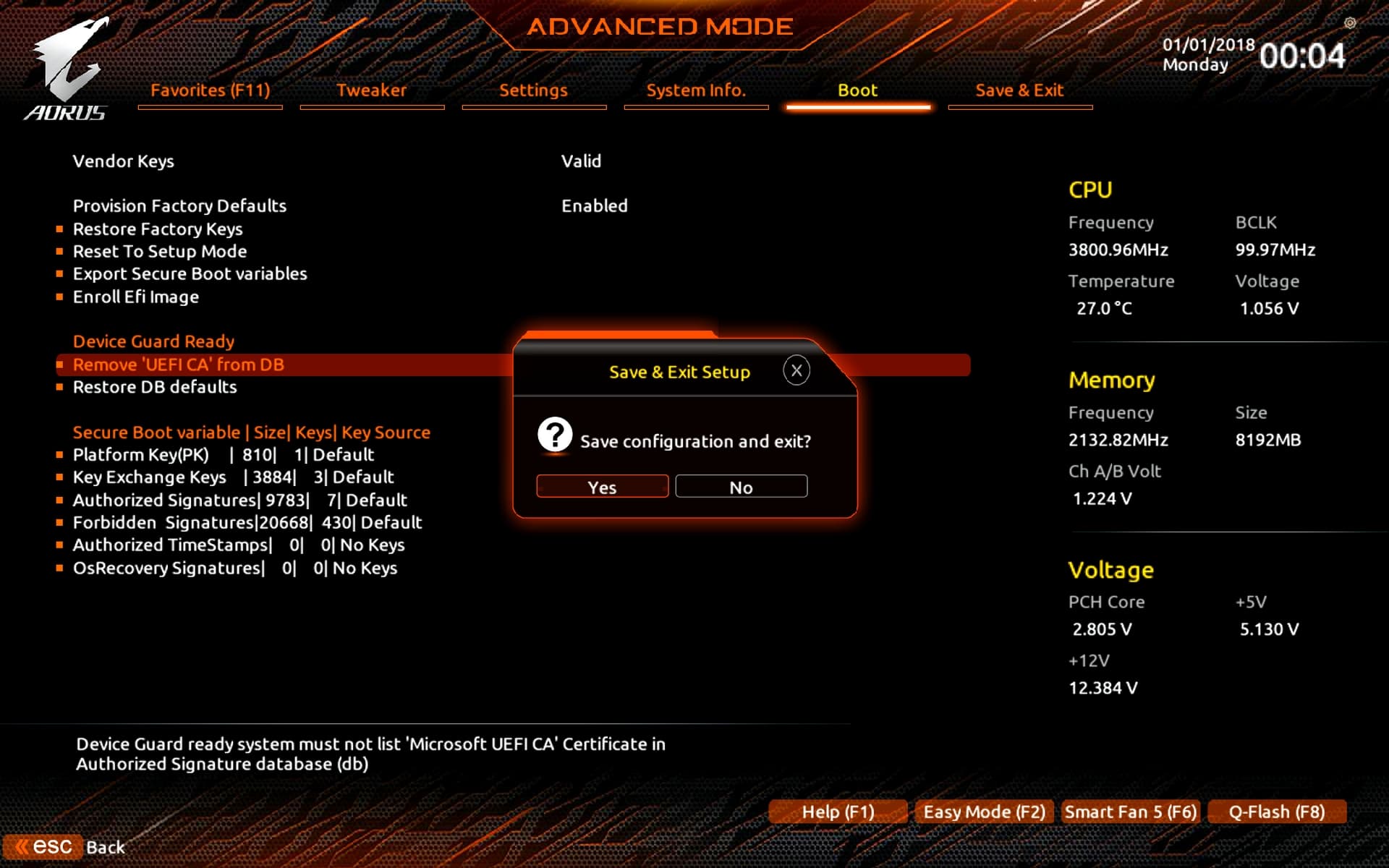
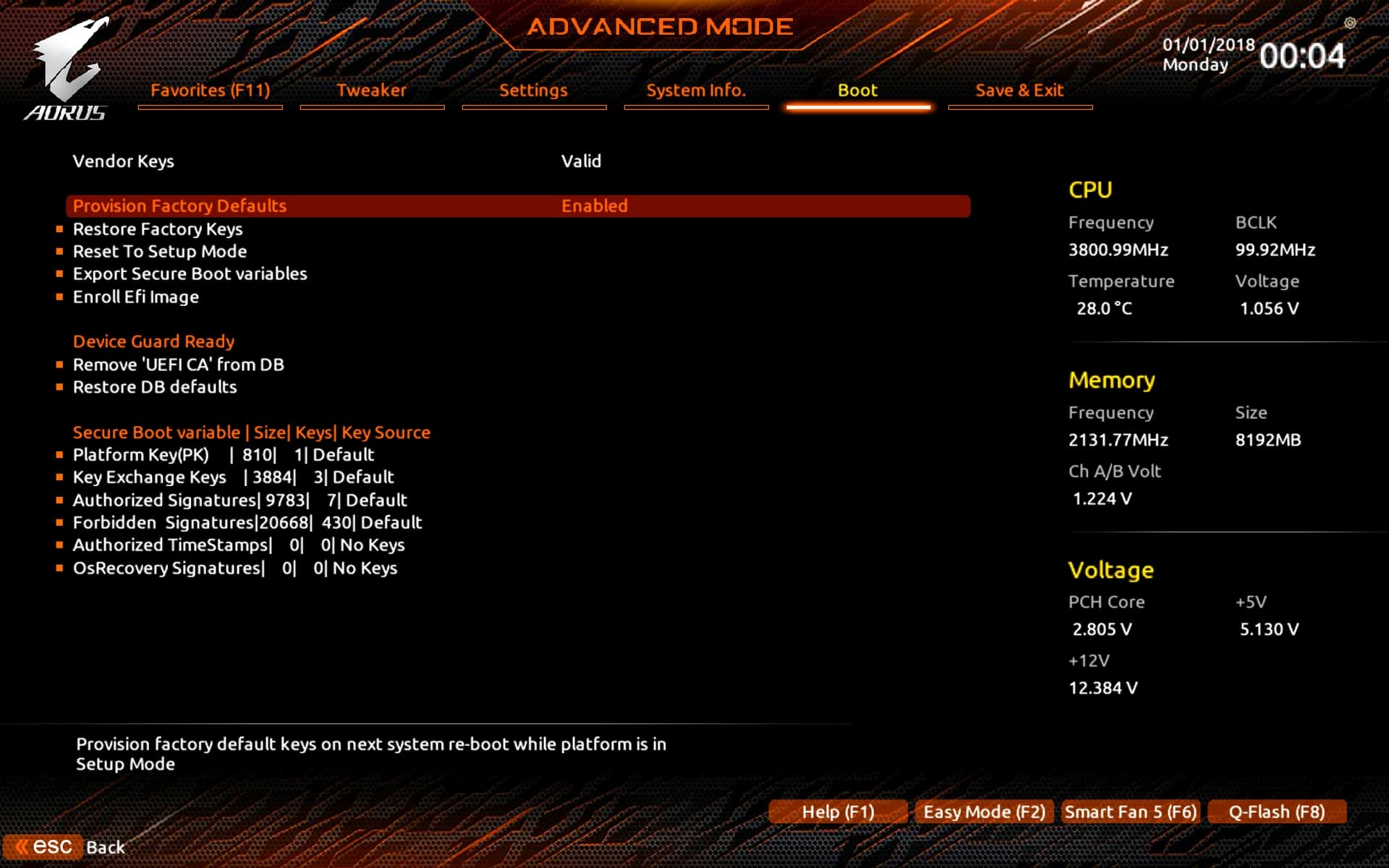
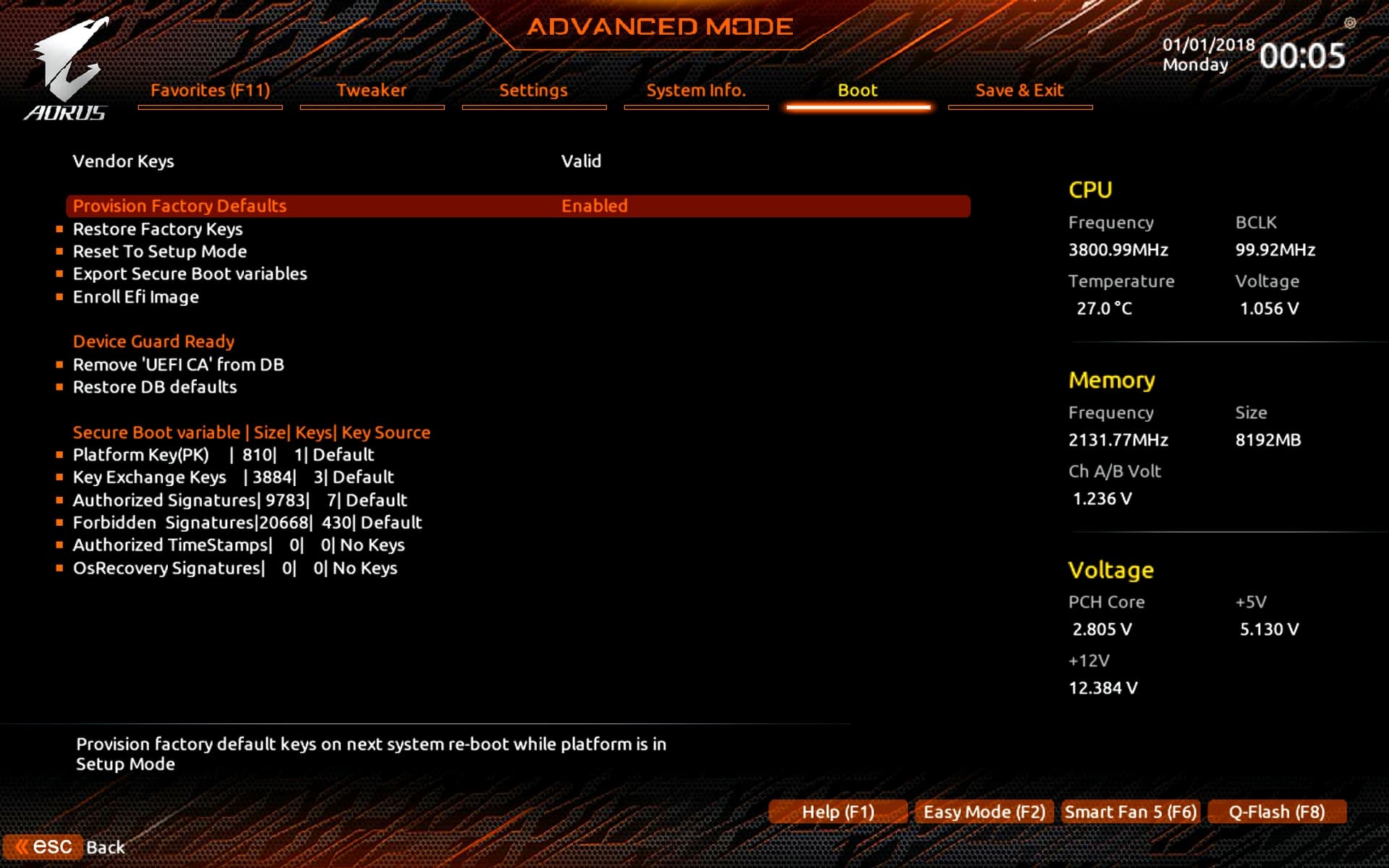
The images below illustrate the changes made within the BIOS.
The motherboard tested was the Gigabyte Z390 AORUS MASTER.
The Microsoft CA 2023 certificates were successfully applied to this motherboard, yielding the desired result.
Note:
For this procedure, a cross-flashing method was performed using a Gigabyte H310M S2H (Rev. 1.x) motherboard I had on hand, effectively converting the existing motherboard’s configuration to that of a Gigabyte Z390 AORUS MASTER.

Result: The Microsoft CA 2023 certificates were successfully updated on the Gigabyte Z390 AORUS MASTER motherboard.


@ismailTPC_Hastanesi Hi!
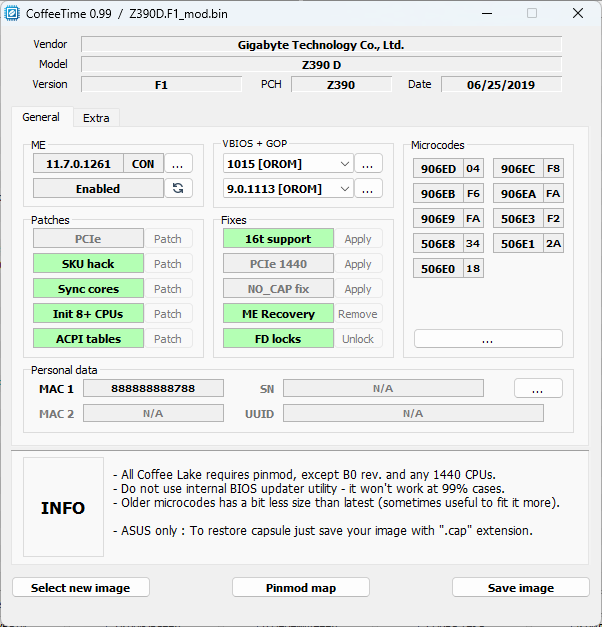
Here is my modified BIOS:

Z390D.F1_mod.bin.zip (6.7 MB)

but it’s actually from the Z390D board; I had mentioned the Z390 AORUS ELITE, but no—it was the Z390D BIOS, as that board is closer to mine in terms of hardware.
I performed the modification and flashed it to my Z270PD3 board back in the summer—a board I kept after selling my Z370PD3.
Currently, the Z270PD3 is running the Z370PD3 BIOS (these boards are clones), and everything works perfectly.
I simply swapped the BIOS region and updated the ME version to 11.7.0.1261.
I used FITool-11.8.86.3877, FITool_12 and Coffee_Time_0.99.
Upon startup, the Gigabyte logo would even appear, but then the system would enter a reboot loop.
Of course, these boards differ in functionality, so it would have been surprising if it had worked properly.

PS/ VBIOS version 1015[OROM] cannot be changed in Coffee_Time_0.99.

1 Like

@ismailTPC_Hastanesi

Result: The Microsoft CA 2023 certificates were successfully updated on the Gigabyte Z390 AORUS MASTER motherboard

I’m a bit lost as the 2023 keys are in my Bios by default and working? Did you mean when you tried on your test board??

I would like to know more of the vscc issue, and how you fixed, so I could examine and try doing myself, I’ve read I need ME Ansylser to help get the correct info, any advice?

P.s when i flash the bios you done, what do you want me to check for?

Finally, following the changes I made to the Gigabyte Z390 AORUS MASTER BIOS, I noticed that a critical error had been resolved.
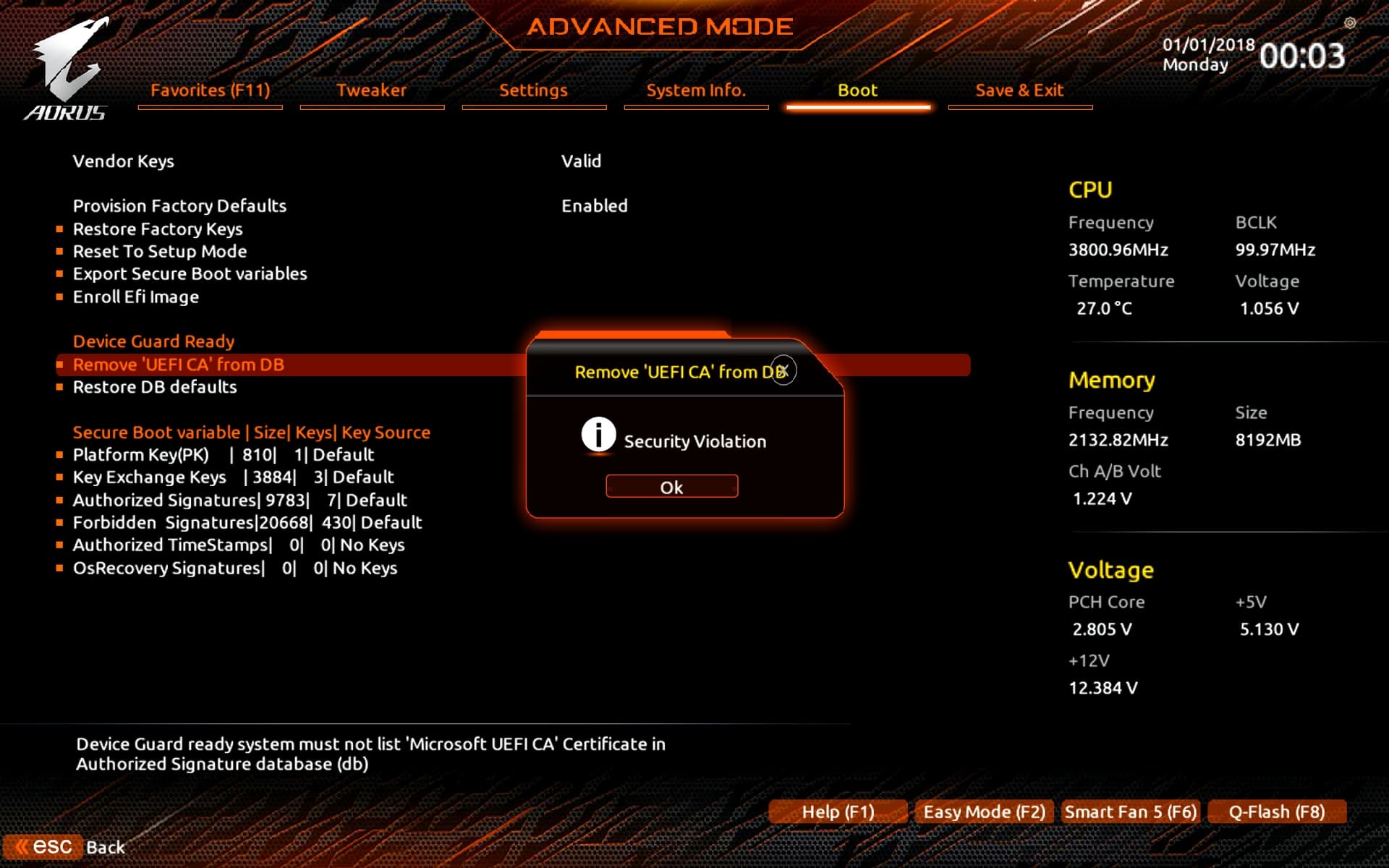
With the stock BIOS provided by Gigabyte, if you selected the “Remove ‘UEFI CA’ from DB” option and deleted it, the motherboard would emit five beeps upon restarting and boot directly to the desktop without ever displaying the BIOS setup screen.
In short, the operating system continued to load in the background; the display only activated once the desktop environment was reached.

However, after making certain BIOS modifications and adding the Microsoft CA 2023 certificates, I found that performing the same action—selecting and deleting the “Remove ‘UEFI CA’ from DB” entry—no longer caused these issues upon restart.
The BIOS screen now appears correctly, and all certificates remain intact.

My conclusion is as follows:
Regarding the motherboard’s official BIOS and Secure Boot settings, I can confirm that the PK, KEK, DB, and DBX modules are essential to the Secure Boot process; accidentally deleting them renders the motherboard unable to boot properly or leaves it with severely restricted functionality.
Neither resetting the CMOS nor removing the BIOS battery will fix the issue.
Instead, the BIOS chip must be reflashed.

Gigabyte definitely needs to address this issue on these motherboards, and the fix is ​​actually quite simple.

The images below indicate that the problem has been resolved following the changes I made to the BIOS. Now, even if I use the BIOS to “Remove ‘UEFI CA’ from DB,” the system reboots without issues, and all the certificates remain exactly as they were.


1 Like

Dear @Zaver, I tried the BIOS file you provided on my own motherboard using cross-flashing. Unfortunately, however, after the motherboard finished the flashing process, it shut itself down as expected—but then it wouldn’t turn on at all.
I was actually expecting this. My previous explanations confirm it: even though my motherboard and the newer ones (which feature the ME 12 region and a newer chipset) might appear to use the same hardware, there are significant differences between them—specifically between my board and the older-chipset models like yours.

I realize now that there is a critical relationship between the chipset and the ME region on my “Gigabyte H310M S2H (Rev. 1.x)” motherboard (and similar models).

To put it more simply, in a way everyone can understand:

When my motherboard first receives power from the PSU, the BIOS sends a signal to the ME 12 chipset.
However, the chipset on my board has a built-in lock; unlocking it depends on a specific “key” mechanism that activates only when it receives the correct signal, frequency, or power pulse from the BIOS’s ME region.

If the ME 12 region contains the key to unlock this mechanism—or the trigger to allow the motherboard to boot up (which it appears to)—then the incoming frequency or data signal successfully engages that key to unlock the system.

On the other hand, if I inject ME 11 into the BIOS, the mechanism required to reach and unlock the chipset is missing; consequently, the motherboard fails to operate entirely—acting as if it were defective—and the fans don’t even spin.

This is because the key required to unlock this new-generation chipset is tied specifically to ME 12; only ME 12 can unlock it. This means there is no lock on the chipsets found in many motherboards featuring the ME 11 region; consequently, even if we disable the ME or make modifications to it, the motherboard can still boot up.

I haven’t seen anyone crack ME 12 yet.
Or perhaps there is a detail I’ve missed.

1 Like

I see you still get the security violation, we was getting that once we removed the key then tried to restore, we had to reflash to fix, so that problems is still there, i don’t think the system is ment to boot to windows when the UEFI keys are removed as its for linx, I dont know, not a linx user just like to play and test. also when we removing the UEFI CA it was put the key in to the forbidden on clicking, yet I see that’s the same keys in your image’s.

Do you mean if the keys are deleted from the Bios File, or from secure boot, the pc wont boot.

Thanks for the info I will pass this on to gigabyte, they was looking in to the above, when I found out @Zaver had the same issue. hoping to have a reply from them soon, just gigabyte are taking longer to respond.

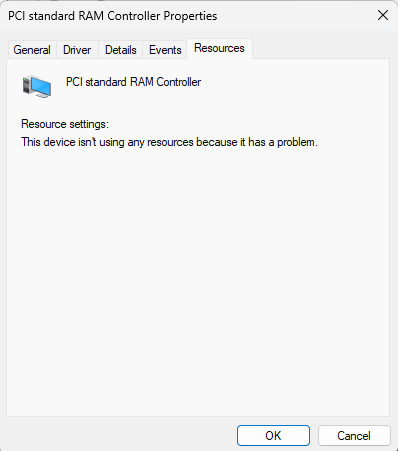
Now this is a issue I have had for ages with this motherboard, with windows 11, and the PCI standard Ram Controller, if i enable CSM in bios it load and shows resources in device manager, yet when i disable CSM it then report in resources has a problem.

Yet think its nothing to worry about.

P.S i was told in another post that the bios is more a shell for intel ME 12. were earlier it was not so.

another issue with this board’s bios was since they revamped the bios from f10 they changed the memory timings in the bios, so there is no way of modifying the b channel its just missing but was there in bios f9 and below. gigabyte refuse to fix.

@ismailTPC_Hastanesi I did this out of curiosity.
I didn’t expect the board to power on at all, but even the fans ran. The Gigabyte splash screen appeared for a second, followed by a reboot loop, and the screen never showed up again.
Afterward, I reverted to the Z370PD3 BIOS and stopped experimenting; doing so can be risky and lead to hardware issues or equipment damage.

1 Like

@Zaver

What did you try?